Deletion of Mail Pieces
| 1) Hover over the "EZ Address™ tab on the tool bar, This will open a drop-down menu. | 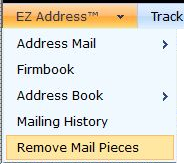 |
| 2) In the drop-down menu, select the "Remove Mail Pieces" tab. 3) Enter the tracking number(s) to be deleted.
| 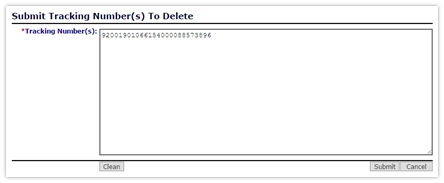 |
4) Any characters may be entered, even if they are not part of the tracking number. To remove all extra characters that are not part of the tracking number(s), click the "Clean" button on the bottom left of the page.
| 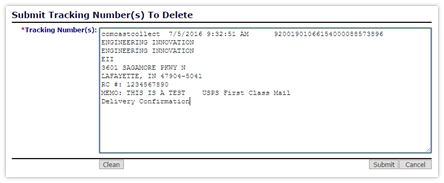 |
| 5) When all extra characters have been removed from the field, hit the “Submit” button. 6) A notification will appear that states the mail piece has been removed and the account has been credited. | 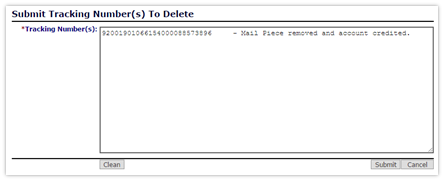 |
Not all mail pieces may be removed. To be removed, a mail piece must be younger than 3 days old, must not have been scanned by the postal system, and the tracking number must be valid.
|    |